What Is the Best AI Tool for Photo Editing in 2026: 9 Tools Compared
Discover what is the best AI tool for photo editing, with top picks for portraits, RAW photos, quick social edits, and pro retouching, plus pricing notes.
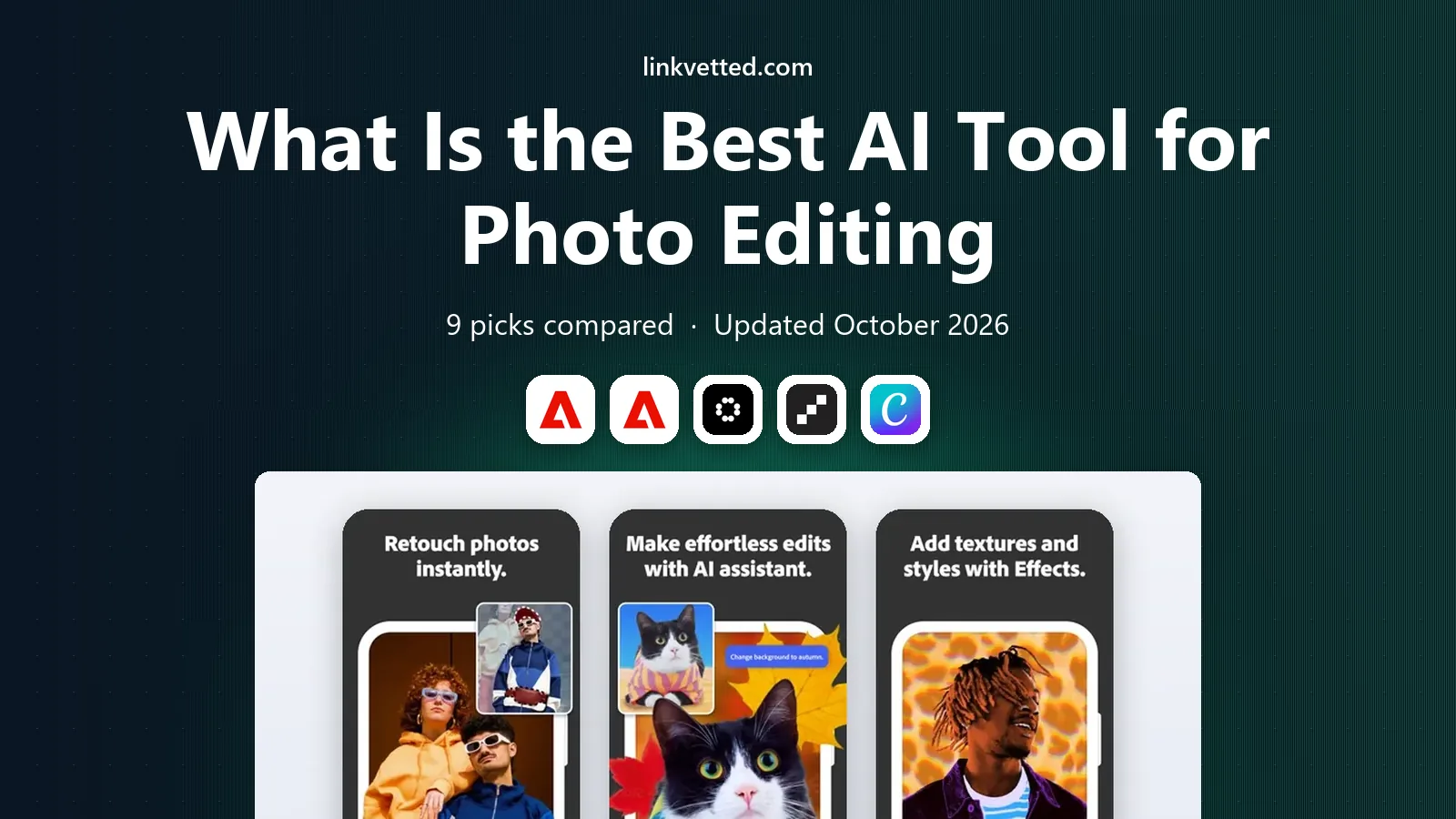
- Editor's choice
 Adobe Photoshop
Pro AI retouching
Starts atSee websiteVisit adobe.comFull review - Great alternative
 Adobe Lightroom
RAW photo editing
Starts atSee websiteVisit adobe.comFull review - Also consider
 Luminar Neo
One-click AI enhancement
Starts atSee websiteVisit skylum.comFull review
TL;DR:
- Adobe Photoshop and Lightroom offer the deepest AI editing for professionals, with object removal, masking, and generative fill.
- Luminar Neo and Topaz Photo AI suit photographers who want strong one-click AI enhancement without a full Photoshop workflow.
- Canva, Fotor, and Pixlr suit quick social edits, background removal, and templates, with free tiers for casual use.
- The best AI photo editing app for you depends on whether you edit RAW files, portraits, or social images most often.
Quick comparison
| Tool | Best for | Starts at | Free plan? | |
|---|---|---|---|---|
| Adobe Photoshop | Pro AI retouching | See website | Free trial | Visit |
| Adobe Lightroom | RAW photo editing | See website | Free trial | Visit |
| Luminar Neo | One-click AI enhancement | See website | Free trial | Visit |
 Topaz Photo AI | Sharpening and upscaling | See website | Free trial | Visit |
 Canva | Quick social photo edits | Free | Yes | Visit |
 Fotor | Easy online AI edits | Free | Yes | Visit |
 Pixlr | Free browser editing | Free | Yes | Visit |
 ON1 Photo RAW | All-in-one RAW editing | See website | Free trial | Visit |
 DxO PhotoLab | RAW quality and noise control | See website | Free trial | Visit |
The best AI tools for photo editing
We compared official feature pages, pricing pages, app store listings, and public reviews, focusing on AI masking, removal, enhancement, RAW support, and ease of use. No single tool wins for every photo type, so we sorted them by the job they do best.

Adobe Photoshop fits photographers and designers who need full control over AI edits, not just filters. Generative Fill can extend a background or replace an object from a text prompt, while the Remove Tool cleans distractions with a brush stroke. Layers, masks, and selections let you keep every change separate and reversible.
That power comes with cost and complexity, and beginners may need tutorials before the AI tools feel natural. Photoshop also works best as part of a Creative Cloud plan, so casual editors may pay for features they rarely use. For professional retouching and compositing, it remains the benchmark.
- Generative Fill and Remove Tool
- Precise layers and masks
- Huge plugin and tutorial base
- Subscription cost
- Steep learning curve for beginners
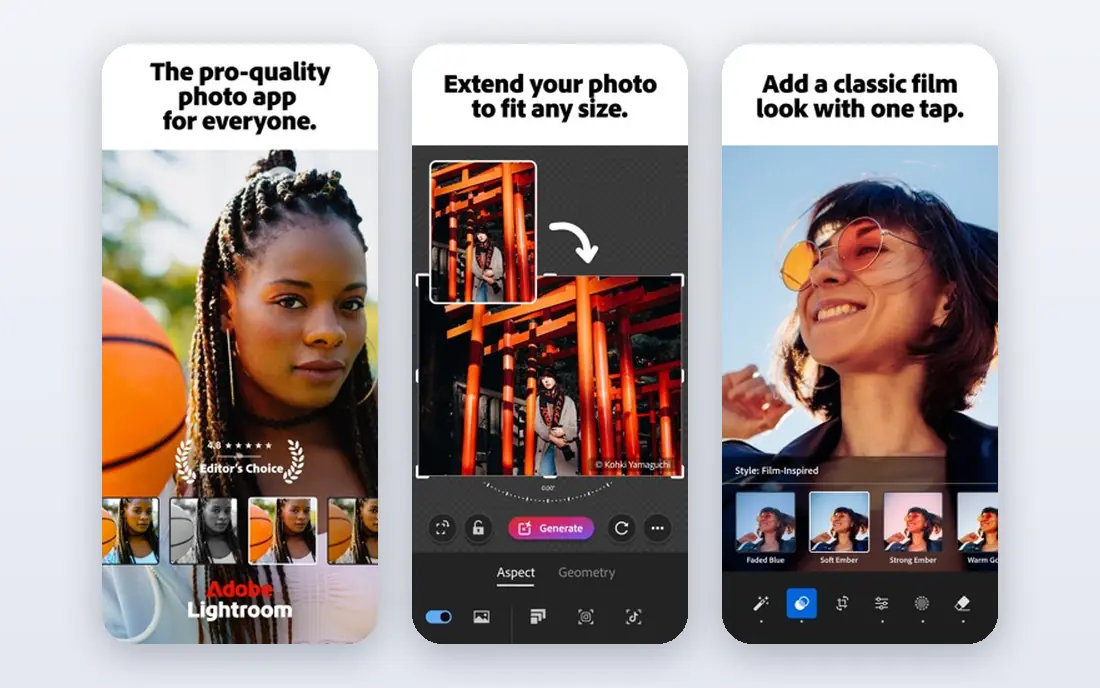
Adobe Lightroom suits photographers who edit many RAW photos and want AI to speed up selection and grading. Its AI masks can pick a subject, sky, or background in one click, and its Remove tool handles small distractions. Edits stay non-destructive, so you can return to the original at any time.
Lightroom is not a compositing tool, so heavy object replacement or layered design still belongs in Photoshop. The subscription also adds up if you only edit a few photos a month. For a photographer with a large library, the speed and organization are worth it.
- AI masking for people and skies
- Non-destructive RAW edits
- Cloud sync across devices
- Subscription cost
- Less pixel-level compositing than Photoshop

Luminar Neo fits photographers who want dramatic AI results with simple sliders. Its tools can replace a sky, relight a scene, enhance a portrait, and remove power lines without manual masking. The interface favors quick, visual editing over deep layer work, which helps hobbyists finish photos faster.
Some advanced tools sit in paid extensions, so check what the base version includes before you buy. Its photo catalog is also lighter than Lightroom, so large libraries may need another organizer. For fast, eye-catching edits, Luminar Neo is a friendly choice.
- AI sky, portrait, and relight tools
- Simple sliders
- Works as a plugin
- Some tools need extensions
- Catalog is lighter than Lightroom
Topaz Photo AI suits photographers who need to rescue noisy, soft, or low-resolution photos. Its AI models sharpen detail, reduce noise, and recover faces, and it can process a batch of images with consistent settings. It works well as a first step before a main editor.
It is not a full photo editor, so you still need another app for cropping, color grading, and local edits. Pricing is also tied to major versions, so check upgrade terms. For old photos, phone shots in low light, and large prints, Topaz is a useful specialist.
- Strong denoise and sharpening
- Face recovery
- Batch processing
- Not a full editor
- Price is per major version
Canva fits social creators, small businesses, and teachers who need a photo edited and placed in a post quickly. Its background remover, Magic Edit, and Magic Eraser handle common fixes, while templates cover posts, flyers, and presentations. The free tier is enough for basic edits and sharing.
AI control is simpler than in Photoshop or Lightroom, so fine retouching and RAW work are limited. Some of the best AI features also need a Pro plan. If speed and templates matter more than pixel-perfect retouching, Canva is hard to beat.
- Easy background remover
- Magic Edit and templates
- Free tier for basics
- AI edits are simpler than pro tools
- Some features need Pro
Fotor suits casual editors who want AI enhancement in a browser without installing software. Its AI enhancer sharpens and brightens photos, its background remover isolates subjects, and batch tools help with many images at once. The layout is simple, so a first edit takes only minutes.
The free tier limits resolution, exports, and some AI tools, and ads can interrupt the flow. Advanced portrait and batch features need a Pro plan. For quick online fixes and social photos, Fotor is a practical free start.
- Browser-based AI enhancer
- Background remover
- Batch editing
- Free tier has limits and ads
- Advanced tools need Pro
Pixlr fits users who want a free, browser-based editor with more depth than a simple filter app. It offers layers, masks, and AI tools for removal and generation, plus mobile apps for on-the-go edits. That range makes it a good bridge between casual editors and Photoshop-style work.
The interface can feel busy for beginners, and the best AI features sit behind a paid plan. Export quality and ads also vary by tier. If you want a free editor that can grow with you, Pixlr is a strong option.
- Free browser editor
- Layers and masks
- AI remove and generative tools
- Interface can feel busy
- Some AI features need a subscription
ON1 Photo RAW suits photographers who want RAW editing, AI masking, and effects in one app without a subscription. Its AI tools can mask subjects and skies, its effects stack is deep, and a perpetual license option appeals to buyers who dislike monthly fees. It also works as a plugin for other editors.
The interface is dense, and the tutorial community is smaller than Adobe's, so learning takes patience. Performance can also vary on older machines with large RAW files. For a photographer who wants one app and a one-time license, ON1 is worth a trial.
- RAW editing with AI masking
- No subscription required for a license
- Effects and layers
- Interface is dense
- Smaller tutorial base than Adobe
DxO PhotoLab fits photographers who care most about image quality, especially from high-ISO RAW files. Its DeepPRIME noise reduction preserves detail in low light, and its lens corrections are based on lab measurements for many cameras and lenses. Edits stay non-destructive, so originals remain safe.
AI features are narrower than in Luminar or Adobe tools, with less focus on generative fill and portrait styling. Catalog and organization tools are also limited compared with Lightroom. For pure RAW quality, DxO is one of the strongest choices here.
- Excellent RAW processing and DeepPRIME noise reduction
- Lens corrections
- Non-destructive edits
- AI features are narrower
- Catalog tools are limited
How we picked these
We compared official feature pages, pricing pages, app store listings, and public reviews, and we favored tools with current AI features for masking, removal, enhancement, or RAW processing. We did not claim hands-on testing. We included free, subscription, and perpetual options, since budget shapes the best choice as much as features.
How to choose the best AI photo editing app
Start with your photo type. RAW photographers need strong RAW processing and noise control, portrait photographers need skin, eye, and background tools, and social creators need templates and fast background removal. A tool that excels at one job may be weak at another.
Quality, control, and cost
Check whether AI edits are adjustable, since a one-click result that cannot be tuned will frustrate you on important photos. Look for non-destructive editing, so you can undo AI changes later. Finally, compare trial terms and whether a plan is monthly, annual, or a one-time license, and test it on your own photos before paying.
A note on realistic AI edits
AI tools can now change faces, backgrounds, and scenes in ways that look real, so use them with care for news, legal, or identity photos. Label edited images where a platform or client requires it, and avoid using AI to mislead viewers. For creative and commercial work, keep originals and note which edits were AI-assisted.
FAQ
What is the best AI tool for photo editing overall?
Adobe Photoshop is the best AI tool for photo editing overall for professionals, because it pairs Generative Fill and precise masking with full layer control. For simpler use, Luminar Neo and Canva are easier starting points.
What is the best AI photo editing app for beginners?
Canva is the best AI photo editing app for beginners who edit social images, thanks to templates and one-click tools. Fotor and Pixlr are also good free starting points, while Luminar Neo suits beginners who want stronger photo enhancement.
What is the best AI tool for editing portraits?
Luminar Neo and Photoshop are strong for portraits, with AI skin, eye, and background tools that keep edits natural when used lightly. Topaz Photo AI also helps when a portrait is noisy or soft, especially for older or low-light photos.
Is there a free AI photo editor that is actually good?
Yes, Canva, Fotor, and Pixlr all offer useful free AI editing, including background removal and enhancement. Free tiers limit resolution or advanced features, so a paid plan may be needed for print-quality or batch work.
Should I use AI to edit RAW photos?
Yes, if your tool supports RAW, since AI masking and noise reduction work well on RAW files and stay non-destructive in Lightroom, DxO PhotoLab, and ON1 Photo RAW. Avoid exporting to a small JPEG first, since that discards detail the AI could have used.
Can AI photo editing replace a professional retoucher?
AI can handle many routine fixes, such as removal, masking, and enhancement, but a professional retoucher still matters for complex skin work, compositing, and print accuracy. Use AI to speed up routine edits, then review results closely on important images.