Best Photoshop Alternatives in 2026: 8 Tools Compared
Discover the best Photoshop alternatives for 2026, from free tools like Affinity, GIMP, and Photopea to paid editors for photographers and artists today.
- Editor's choice
 Affinity
All-round Photoshop replacement
Starts atFreeVisit affinity.serif.comFull review - Great alternative
 GIMP
Free open-source editing
Starts atFreeVisit gimp.orgFull review - Also consider
 Photopea
Browser editing and PSD files
Starts atFreeVisit photopea.comFull review
TL;DR:
- Affinity is now free for individual use, which makes it the strongest all-round Photoshop replacement for most people.
- Photopea is the fastest way to open and edit a PSD file in a browser, with no install and a familiar Photoshop-style layout.
- GIMP and Krita remain the best open-source choices, for general editing and digital painting respectively.
- Capture One and DxO PhotoLab are better than general editors for photographers who work mainly with RAW files.
Quick comparison
| Tool | Best for | Starts at | Free plan? | |
|---|---|---|---|---|
| Affinity | All-round Photoshop replacement | Free | Yes | Visit |
| GIMP | Free open-source editing | Free | Yes | Visit |
| Photopea | Browser editing and PSD files | Free | Yes | Visit |
 Krita | Digital painting and illustration | Free | Yes | Visit |
 Pixelmator Pro | Mac photo editing | See website | Free trial | Visit |
 Capture One | RAW workflow and studio work | See website | Free trial | Visit |
 DxO PhotoLab | RAW processing and photo quality | See website | Free trial | Visit |
 Pixlr | Quick browser edits and effects | Free | Yes | Visit |
The best Photoshop alternatives
Photoshop remains the industry standard, but its subscription price and depth are more than many people need. The tools below cover the main reasons people switch: cost, a simpler workflow, a specific strength such as painting or RAW processing, or freedom from a subscription.
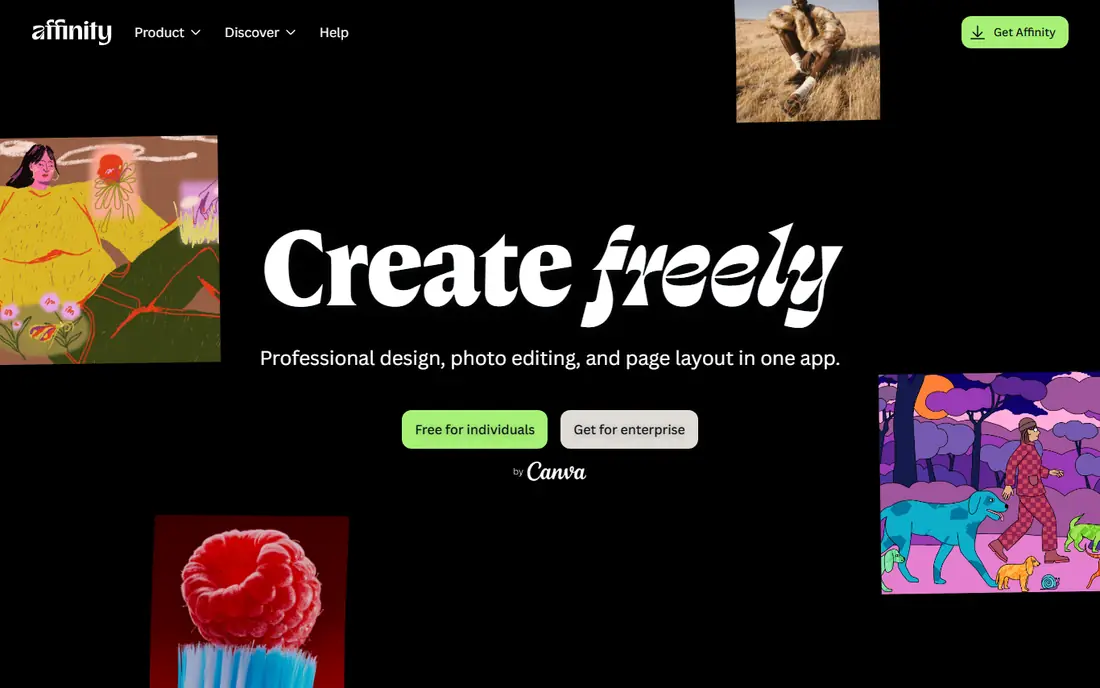
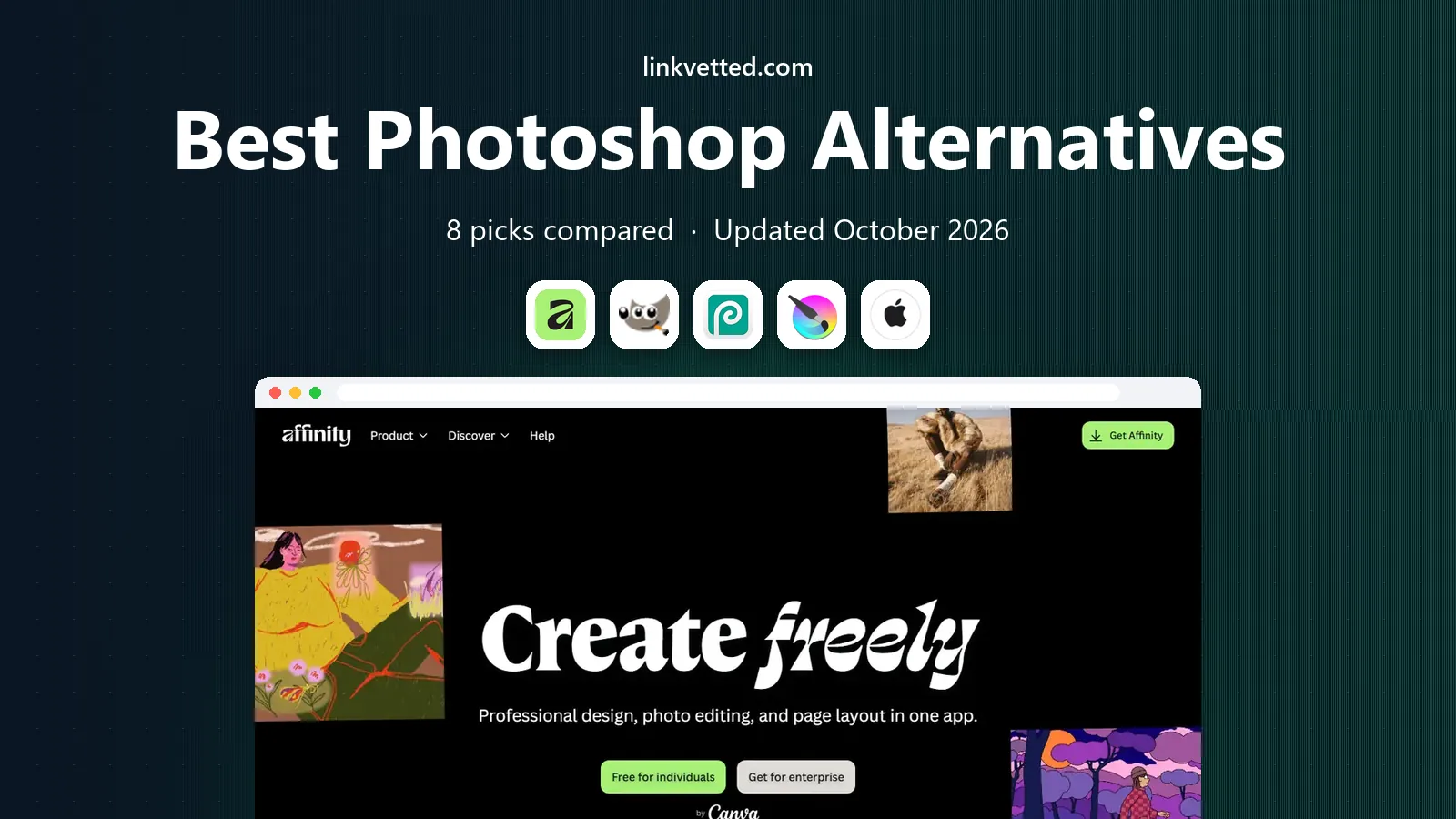
Affinity is our pick for most people who want to leave Photoshop without giving up professional tools. The unified app combines photo editing, design, and page layout tools, with layers, masks, adjustment layers, and RAW development in one place. Since Canva made it free for individual use, the price argument for staying with a subscription has weakened a lot.
The honest catch is the ecosystem. Photoshop has a larger plugin library and deeper integration with other Adobe apps, and some Affinity AI features sit behind a Canva Pro subscription. If you work alone or in a small team and mainly edit photos and graphics, those limits rarely matter.
- Full layer, mask, and non-destructive editing
- Strong RAW support
- Free for individual use
- Some advanced AI features need a paid Canva plan
- Plugin support is more limited than Photoshop
GIMP has been the free Photoshop alternative for decades, and it still earns that place. It handles layers, masks, paths, filters, and color tools with real depth, and its plugin library lets you add features for tasks such as batch processing and advanced retouching. Because it is open source, there is no subscription, no account lock-in, and no feature paywall.
The learning curve is the main cost. Menus and terms differ from Photoshop, and some workflows take more steps. If you are willing to spend a few sessions learning its layout, GIMP can handle most everyday editing jobs for free, on Windows, macOS, and Linux.
- Free and open source with no subscription
- Deep tools for layers, masks, and selections
- Large plugin and script library
- Interface feels dated next to modern editors
- PSD compatibility is good but not perfect
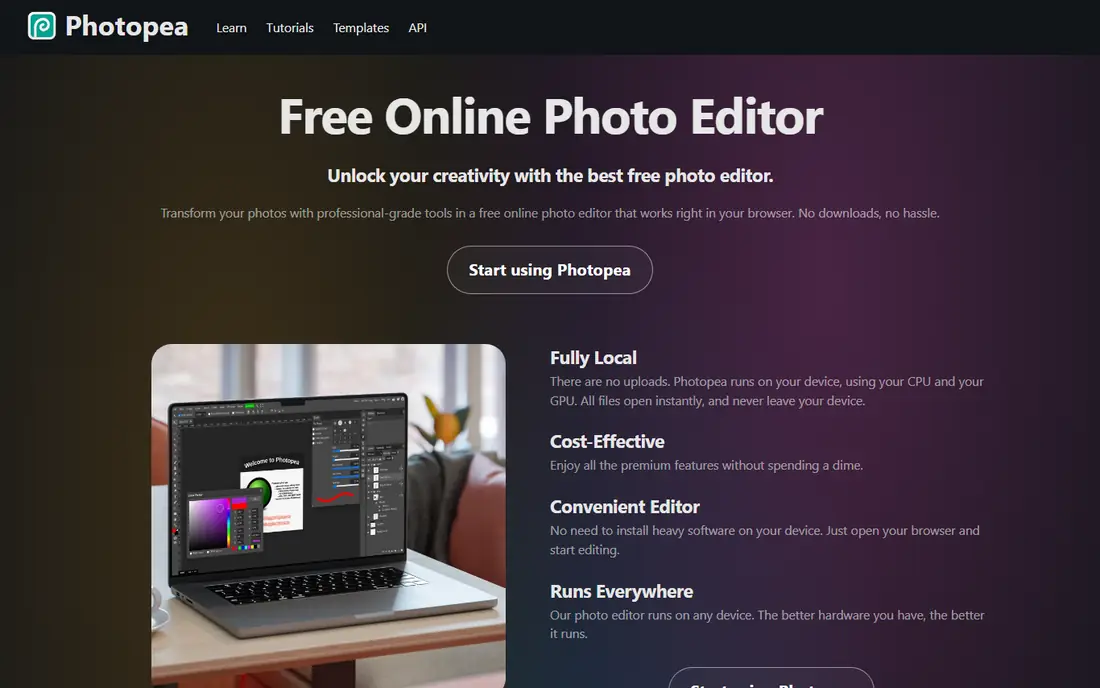
Photopea is the best choice when you need to edit a Photoshop file quickly and do not want to install anything. It opens PSD, XCF, and other common formats in the browser, keeps layers and masks in place, and mirrors much of Photoshop's panel layout and keyboard shortcuts. For a one-off edit, a school computer, or a Chromebook, that combination is hard to beat.
Ads support the free version, and a paid plan removes them and adds extra storage and history steps. Heavy files and long sessions still feel better in a desktop app, but for short edits and file compatibility, Photopea is remarkably capable.
- Opens PSD files with layers intact
- Photoshop-style interface and shortcuts
- Runs in any modern browser
- Free version shows ads
- Large files can be slower than a desktop editor
Krita is not a general Photoshop clone, and that focus is why it belongs here. For digital painting, comics, concept art, and illustration, its brushes, stabilizers, and canvas tools are better than what most photo editors offer. It also supports layers, masks, and animation, so illustrators can take a piece from sketch to finished file in one app.
Photographers should look elsewhere. Krita can adjust an image, but it lacks the depth of retouching, RAW, and batch tools found in Affinity or GIMP. If your main work is painting, Krita is the free pick, and it runs on Windows, macOS, and Linux.
- Excellent brush engines for painting and illustration
- Free and open source
- Strong layer and animation tools
- Photo retouching tools are weaker than GIMP or Affinity
- Interface is built around painting, not photo workflows
Pixelmator Pro is the best Photoshop alternative for Mac users who want a fast, polished editor without a subscription. It uses Mac hardware well, so large images feel responsive, and its machine-learning tools for removing objects, upscaling, and adjusting photos save real time. The interface is simpler than Photoshop, which helps newcomers finish edits faster.
The limit is platform. There is no Windows or Linux version, and teams that share files across platforms may need to export carefully. For a solo Mac user, though, Pixelmator Pro covers most photo editing needs with a one-time purchase model rather than a monthly bill.
- Fast, Mac-native design
- Strong machine-learning tools for retouching and upscaling
- Clean, approachable interface
- Mac only
- Smaller plugin ecosystem than Photoshop
- Some pro workflows need another app
Capture One is built for photographers first, especially those who shoot RAW and work in a studio. Its color editing, tethered capture, and session organization are stronger than the equivalent tools in general editors, and many professionals use it as their main RAW processor. If your work starts with a camera and ends with a finished photo, this focus pays off.
It is not a Photoshop replacement for compositing, heavy retouching with many layers, or graphic design. The price also puts it out of reach for casual editors. Consider Capture One when RAW quality and studio workflow matter more than general image manipulation.
- Excellent RAW processing and color tools
- Tethered shooting for studio work
- Strong session and catalog workflows
- Expensive for casual use
- General compositing and graphic design tools are limited
DxO PhotoLab appeals to photographers who care most about image quality from RAW files. Its lens profiles, noise reduction, and detail recovery are well regarded, and the workflow from import through editing to export is straightforward. You can process a large shoot with consistent results and less manual correction than in a general editor.
Like Capture One, it is not a full Photoshop substitute. Layers, text, and graphic design are limited, so many users pair it with Affinity or GIMP for compositing. As a RAW processor, though, it is one of the strongest paid options on this list.
- Strong lens corrections and noise reduction
- Excellent RAW detail and color
- Clear workflow from import to export
- Limited layer and compositing tools
- No subscription-free mobile companion of the same depth
Pixlr is a good pick for quick edits when you do not need a full desktop editor. It runs in the browser, supports layers and masks for basic compositing, and includes AI tools for background removal, effects, and quick enhancements. Social posts, product photos, and simple graphics are all within its comfort zone.
Serious editors will hit limits sooner. The free tier restricts some tools and assets, and complex layered files are better handled in Affinity, GIMP, or Photopea. Use Pixlr for speed and convenience, and move to a desktop editor when a project grows.
- Fast browser editing with layers
- Useful AI and effect tools for quick jobs
- Free tier for basic edits
- Advanced features need a paid plan
- Interface and export limits can frustrate heavy users
How we picked these
We compared official feature pages, pricing pages, app store listings, and public reviews for editors available in October 2026. We favored tools that are actively maintained, handle layers and common file formats, and serve a clear use case, whether that is free general editing, painting, RAW processing, or browser work. We did not claim hands-on testing, and we checked that each vendor homepage listed here belongs to the named product.
How to choose the right editor
Start with the file type you work with most. If clients send PSD files, Photopea or Affinity will cause the fewest compatibility headaches. If you paint, Krita should be first on your list. If you shoot RAW, Capture One or DxO PhotoLab will give you better starting quality than a general editor, even if you finish the file elsewhere.
Next, weigh cost against how often you edit. A free tool that you use weekly beats a paid subscription you use twice a year, and Affinity being free for individuals changes that math for many people. Check the paid tier only when a specific limit blocks you, such as export resolution, AI credits, or a missing tool.
Finally, try the workflow, not just the feature list. Open a real file, make a typical edit, and export it in the format you need. An editor that feels natural for your usual job will save more time than one with a longer feature list that you rarely use.
FAQ
What is the best free Photoshop alternative?
Affinity is the strongest free all-round choice for individuals, with full layer and RAW tools. GIMP is the best free open-source desktop editor, and Photopea is the best free browser option, especially for PSD files.
Can these tools open PSD files?
Photopea opens PSD files with layers largely intact, which is its main advantage. Affinity and GIMP also open PSD files, but some effects and adjustment layers may not transfer exactly. Always keep a copy of the original file before converting.
Is Affinity really free?
Affinity is free for individual use, with a free Canva account required to sign in. Some advanced AI features need a Canva Pro subscription, and organizations may have different terms, so check the current Affinity terms on its site.
Which Photoshop alternative is best for beginners?
Photopea feels familiar if you already know Photoshop, while Affinity and Pixlr have cleaner interfaces for newcomers. Beginners who only need quick edits should start with Pixlr or Photopea, and move to Affinity or GIMP when projects get more complex.
Do I still need Photoshop for professional work?
Some studios and clients require Photoshop files or Adobe workflows, and in those cases a subscription may still make sense. For most freelance and small-team work, Affinity, Capture One, or DxO PhotoLab cover the core tasks without a monthly fee.
Which alternative is best for digital painting?
Krita is the clear pick for painting and illustration, thanks to its brush engines and canvas tools. Photoshop and Affinity can paint, but Krita is built around that job and costs nothing.