Best PDF Compressor Tools in 2026: 9 Tools Compared
Compare the best PDF compressor tools, including free options, with file limits, quality settings and offline choices for smaller PDFs in 2026 for everyday use.

- Editor's choice
 Smallpdf
Occasional use with a clean interface
Starts at$9 per monthVisit smallpdf.comFull review - Great alternative
 iLovePDF
Free-friendly all-round PDF toolkit
Starts at$5 per monthVisit ilovepdf.comFull review - Also consider
 PDF24
Fully free online and desktop tools
Starts atFreeVisit tools.pdf24.orgFull review
TL;DR:
- Smallpdf is our pick for occasional use, thanks to a clean interface and strong compression, with a free tier for light work.
- iLovePDF is the best free-friendly alternative, with a generous free allowance and a lower paid price than Smallpdf.
- PDF24 is the best fully free desktop and online option, with no subscription needed for basic compression.
- Sejda suits users who need a few free tasks a day plus text editing, with Premium at $7.50 per month.
- For sensitive documents, use an offline desktop tool rather than uploading files to a web service.
Quick comparison
| Tool | Best for | Starts at | Free plan? | |
|---|---|---|---|---|
| Smallpdf | Occasional use with a clean interface | $9 per month | Yes | Visit |
| iLovePDF | Free-friendly all-round PDF toolkit | $5 per month | Yes | Visit |
| PDF24 | Fully free online and desktop tools | Free | Yes | Visit |
 Sejda | Free daily tasks plus editing | $7.50 per month | Yes | Visit |
 Adobe Acrobat | Professional PDF work and OCR | $23.99 per month | Free trial | Visit |
 PDF2Go | Simple free online compression | Free | Yes | Visit |
 Soda PDF | Desktop PDF suite with compression | See website | Free trial | Visit |
 PDF Candy | Simple online compression and conversion | See website | Yes | Visit |
 AvePDF | No-account online compression | Free | Yes | Visit |
The best PDF compressor tools
A PDF compressor shrinks a file by reducing image resolution, removing unused data and optimising fonts, so it emails faster and uploads without hitting size limits. The best tool for you depends on how often you compress, how sensitive the file is, and whether you want an online tool or a desktop app.

Smallpdf is the tool most people open first, because compression takes three steps: upload, choose basic or strong compression, and download. The free plan covers two tasks a day with 5 MB files, which suits occasional use, while Pro at $9 per month removes caps, raises file size to 5 GB and adds the full toolkit, including OCR and e-signatures.
Large files upload slowly, and the daily cap bites if you compress in batches. For a user who compresses a few files a month and wants a polished, no-fuss experience, Smallpdf is the default pick, with iLovePDF as a backup when the cap hits.
- Clean, easy interface
- Strong and basic compression modes
- Full PDF toolkit included
- Free plan limited to two tasks a day and 5 MB files
- Pro needed for large files and unlimited tasks
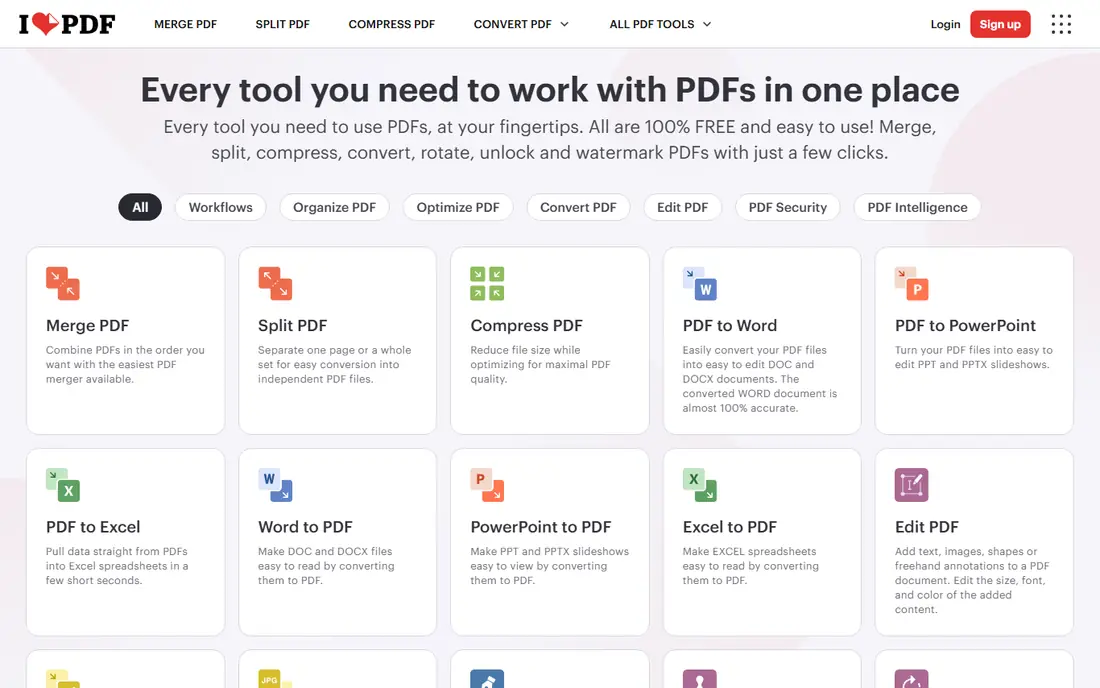
iLovePDF offers nearly the same toolkit as Smallpdf, with a friendlier free allowance and a lower paid price. Premium costs $5 per month billed annually, or $9 per month billed monthly, and adds unlimited batch processing, larger files up to 4 GB and desktop and mobile apps. That makes it better value for regular users who do not need Smallpdf extras like a bundled signature subscription.
The trade-off is polish: the interface is more functional, and free users see upgrade prompts. If you compress often and want the lowest paid price for a full toolkit, iLovePDF is the better buy.
- Generous free allowance
- Premium from $5 per month billed annually
- Batch processing on Premium
- Free users see ads
- OCR and text editing need Premium
- Interface is functional rather than polished

PDF24, from German company geek software, offers free online PDF tools plus a free Windows desktop app, PDF24 Creator, with no subscription needed for compression. That makes it the best choice for users who compress often but do not want a monthly bill, and for Windows users who prefer offline processing for privacy.
The online tools are ad-supported and the design feels dated beside Smallpdf. For a free, practical compressor that also handles merging, splitting and conversion, PDF24 is hard to beat on value alone.
- Free online tools and desktop Creator
- No subscription for basic compression
- Many PDF tools included
- Ad-supported online tools
- Interface is dated
- Fewer cloud features than paid rivals
Sejda stands out by letting you edit existing PDF text directly in the browser, which most free tools do not allow, plus three free tasks a day for compression and other tools. Premium costs $7.50 per month and removes the daily limits, making it a mid-priced option for users who need editing as well as compression.
Heavy batch users will hit the free limits fast, and the desktop version is less full-featured than the web tool. For a user who needs a few compressions a day plus occasional text fixes, Sejda is a strong, underrated pick.
- Three free tasks a day
- Lets you edit existing PDF text in the browser
- Clear compression options
- Free tasks are limited by size and count
- Premium needed for batch work
- Desktop app is more limited
Adobe Acrobat is the professional standard for PDF work, with the most reliable handling of scanned documents, OCR and complex files. Its online compressor is free for basic use with an account, while Acrobat Pro at $23.99 per month adds full editing, OCR, redaction and batch processing. For a business that lives in PDFs, that depth justifies the price.
For simple compression, Acrobat is overkill and expensive. Use the free online tool for a one-off file, and pay for Pro only if you also need editing, OCR or form work every week.
- Best-in-class PDF quality and OCR
- Reliable compression for scanned files
- Full editing suite
- Highest price here at $23.99 per month for Pro
- Online compression needs an account
- Overkill for simple shrinking
PDF2Go offers straightforward online compression without an account for basic files, plus conversion, editing and protection tools in the same site. It suits a user who needs a quick shrink before emailing a file, without installing software or learning a suite. Cloud upload from Google Drive and Dropbox saves a download step.
Free use has limits, and the site shows upgrade prompts. For occasional, non-sensitive files, PDF2Go is a fast, no-install option. For sensitive or large files, use a desktop tool instead.
- Free online compression
- Simple interface
- Optional cloud upload from Drive and Dropbox
- File size and feature limits on free use
- Ads and upgrade prompts
- No full desktop suite
Soda PDF gives users a desktop suite plus online tools, so compression can happen offline on your own machine, which helps with sensitive documents. The suite also covers editing, conversion, forms and e-signatures, making it a fuller alternative to online-only tools. A free trial lets you test compression quality before paying.
Pricing varies and should be confirmed on its site, and the interface packs in many features. For users who want a desktop PDF suite with compression included, Soda PDF is a solid mid-range choice.
- Desktop and online PDF tools
- Compression plus editing and conversion
- Offline processing option
- Pricing varies by plan and needs checking
- Interface is busy
- Free tier is limited
PDF Candy offers a clean list of online PDF tools, with compression that works without an account for basic files. It suits users who want a simple site for shrinking, converting and merging PDFs without a subscription. The free tier handles occasional work well.
Hourly limits apply to free use, and advanced features like OCR sit behind paid plans. For light, non-sensitive compression, PDF Candy is a simple, reliable bookmark. For heavy use, a paid tool or PDF24 desktop will serve you better.
- Free online compression
- Simple tool list
- Conversion and editing tools in one site
- Free use has hourly limits
- Paid pricing needs checking
- Fewer advanced PDF features
AvePDF is a lightweight online tool for users who want compression without creating an account. Upload a file, compress it and download the smaller version, with no sign-up friction. That simplicity suits a one-off shrink on a shared or public computer, where you do not want to leave an account behind.
It lacks the depth, batch tools and cloud features of larger rivals. For regular PDF work, choose Smallpdf, iLovePDF or PDF24. For a quick, no-account compression, AvePDF does the job cleanly.
- Free online compression without an account
- Simple interface
- Files processed in the browser where possible
- Smaller toolset than Smallpdf or iLovePDF
- Fewer batch options
- Less suited to professional workflows
How we picked these
We compared official pricing pages, feature lists and public reviews for PDF compressor tools in October 2026, favouring tools that are currently available, offer a free or trial option, and handle common PDF sizes reliably. We included online, desktop and professional options, and we marked pricing that could not be verified as See website.
What to check before you compress
Choose a compression level that matches the file: basic compression keeps quality high for printing, while strong compression suits email and web sharing but can soften images. Check the output before sending, especially for scanned documents, small text and signatures. For sensitive files, prefer a desktop tool like PDF24 Creator or Soda PDF over uploading to a web service, and delete uploaded files from any online tool after download if that option is offered.
FAQ
What is the best free PDF compressor tool?
PDF24 is the best fully free option, with online tools and a free desktop app and no subscription for basic compression. Smallpdf, iLovePDF, Sejda and PDF2Go also offer free tiers, but with daily or size limits.
What is the best-rated PDF compressor tool for regular use?
Smallpdf and iLovePDF rate highest for regular use, thanks to polished interfaces and full toolkits. Smallpdf wins on polish, while iLovePDF wins on free allowance and lower paid price at $5 per month billed annually.
What is the best PDF compressor app for a phone?
Smallpdf, iLovePDF and Adobe Acrobat all offer mobile apps for iOS and Android with compression built in. For phone use, pick the app whose desktop or web tool you already use, so files and settings stay consistent.
Does compressing a PDF reduce quality?
Yes, strong compression can reduce image quality and soften scanned pages, while basic compression keeps quality closer to the original. Always check the output, especially for documents that will be printed or filed officially.
Is it safe to compress PDFs online?
For ordinary, non-sensitive files, reputable online tools use encrypted transfer and delete files after processing. For contracts, medical records, financial documents or identity papers, use an offline desktop tool instead of uploading the file.
What is the best PDF compressor software for Windows?
PDF24 Creator is the best free Windows option, with offline compression and a full desktop toolkit. Soda PDF and Adobe Acrobat are stronger paid Windows suites for users who also need editing, OCR and forms.
Sources
- https://smallpdf.com/pricing
- https://www.ilovepdf.com/pricing
- https://tools.pdf24.org/en/compress-pdf
- https://www.sejda.com/pricing
- https://www.adobe.com/acrobat/pricing.html
- https://www.pdf2go.com/compress-pdf
- https://www.sodapdf.com/pricing
- https://pdfcandy.com/compress-pdf.html
- https://avepdf.com/compress-pdf