Best Parental Control App in 2026: 9 Apps Compared
We compared the best parental control app options on filtering, screen time, location, and privacy, so families can set clear rules with less conflict at home.
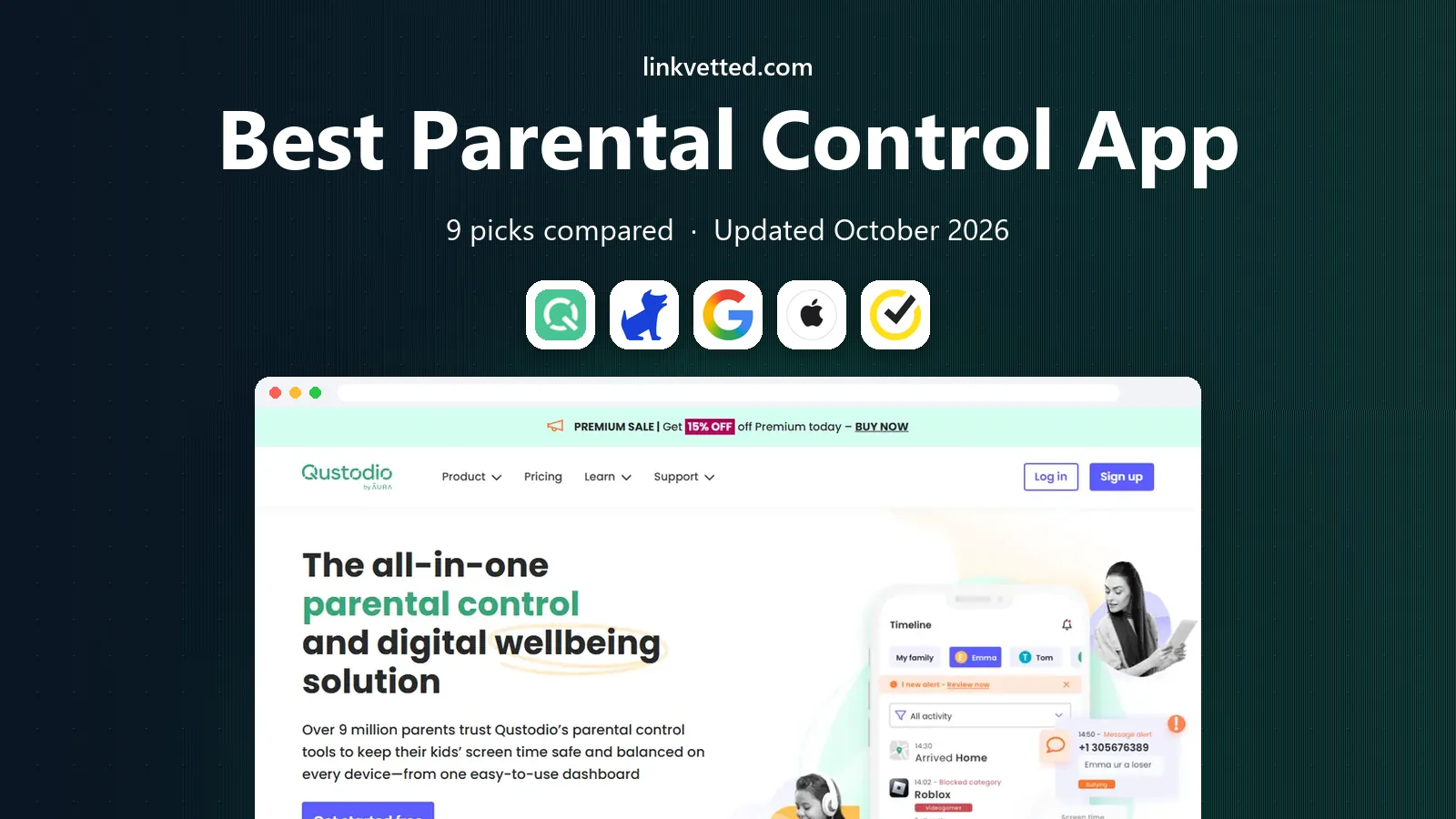
- Editor's choice
 Qustodio
Cross-platform controls and reporting
Starts atFreeVisit qustodio.comFull review - Great alternative
 Bark
Teen monitoring with alerts, not spying
Starts atSee websiteVisit bark.usFull review - Also consider
 Google Family Link
Free controls for Android families
Starts atFreeVisit families.google.comFull review
TL;DR:
- Qustodio offers the broadest cross-platform controls and reporting.
- Bark suits teens because it flags concerns instead of showing everything.
- Google Family Link and Apple Screen Time are free starting points worth trying first.
- Features often differ by device, so check iPhone and Android support before paying.
Quick comparison
| Tool | Best for | Starts at | Free plan? | |
|---|---|---|---|---|
| Qustodio | Cross-platform controls and reporting | Free | Yes | Visit |
| Bark | Teen monitoring with alerts, not spying | See website | Free trial | Visit |
| Google Family Link | Free controls for Android families | Free | Yes | Visit |
 Apple Screen Time | Free controls for Apple households | Free | Yes | Visit |
 Norton Family | Budget controls for Windows and Android | See website | Free trial | Visit |
 Net Nanny | Real-time web content filtering | See website | No | Visit |
 Mobicip | Affordable filtering for large families | See website | Free trial | Visit |
 Aura | Parental controls plus family security | See website | Free trial | Visit |
 Microsoft Family Safety | Free controls for Windows and Xbox | Free | Yes | Visit |
The best parental control apps
Users must respect age rules and privacy, and we recommend using these tools with children openly, not secretly. Talk about what will be monitored, why, and when rules will loosen as a child shows responsibility. We compared official feature pages, pricing pages, and platform support, with extra attention to how features differ on iPhone and Android.

Qustodio is the most complete all-round choice for mixed-device families. It covers Android, iOS, Windows, Mac, Chromebook, and Kindle, gives clear activity reports, and lets parents set app limits, schedules, and location alerts from one dashboard. The honest catch is worth weighing. Full features need a paid plan. Pick this one if cross-platform controls and reporting is your main need, and check the free plan first to see whether it covers your usual use.
- Wide device support including Kindle
- Detailed activity reports
- Location and app limits
- Full features need a paid plan
- Some monitoring limits apply on iOS

Bark takes a different approach that many families prefer for teens. Instead of showing parents every message, it flags concerning content around bullying, self-harm, and other risks, which preserves more privacy while still giving an early warning. The honest catch is worth weighing. Premium price is higher than basic filters. If you try it and miss a feature, compare the next option before paying, because strengths differ more than marketing suggests.
- Scans texts, email, and many social apps for flagged concerns
- Screen time and filtering on Jr plan
- Location check-ins
- Premium price is higher than basic filters
- Setup on iOS takes more steps
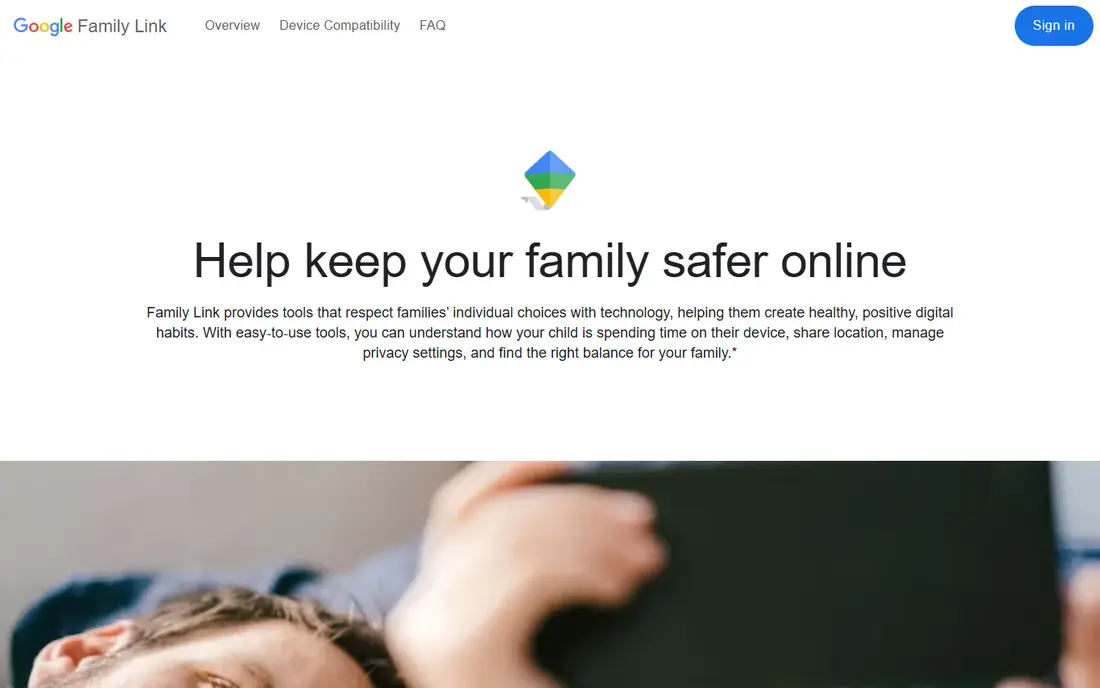
Google Family Link is the first tool Android families should try. It is free, built into Android, and covers the basics well, including app approvals, screen time limits, and location, though it does not scan social media or messages. The honest catch is worth weighing. Best on Android and Chromebook. It is worth a short trial with real work, not just a demo, so you can judge whether it fits your daily routine.
- Free app limits, downtime, and content controls
- Location for supervised accounts
- Purchase approvals
- Best on Android and Chromebook
- Limited monitoring on iPhone
- No social media scanning
Apple Screen Time is the obvious starting point if your family uses Apple devices. It needs no extra app or subscription, sets app limits and downtime, and adds Communication Safety features, though it cannot manage Android or Windows devices. The honest catch is worth weighing. Apple devices only. Start with the free or trial version, and upgrade only when you hit a limit that actually slows you down.
- Built into iPhone, iPad, and Mac
- App limits, downtime, and content restrictions
- Communication Safety features
- Apple devices only
- No detailed cross-platform reporting
- Limited web filtering detail
Norton Family is a solid value choice, especially if you already use Norton security products. It handles web supervision, time limits, and location well on Windows and Android, and bundling with Norton 360 can make it cheaper than buying a standalone app. The honest catch is worth weighing. Weaker on Mac and Chromebook. For most people, the deciding factor will be fit, not feature count, so weigh the catch above as carefully as the strengths.
- Web supervision and search controls
- Time limits and school-time settings
- Included with some Norton 360 plans
- Weaker on Mac and Chromebook
- Social monitoring is limited
Net Nanny leads when web filtering is the main concern. It analyses web content in real time rather than relying only on block lists, which helps with new or changing sites, though families should confirm current platform support before buying. The honest catch is worth weighing. No permanent free plan. Use it for a week with your normal tasks, then decide whether the trade-offs are acceptable for the price.
- Real-time web filtering by category
- App blocking and screen time
- Family feed of activity
- No permanent free plan
- Android support and some platform limits need checking
Mobicip is the budget-friendly pick for households with many devices. Its low starting price, wide platform support, and core filtering and limits make it practical for large families, even if the design is less polished than Qustodio or Bark. The honest catch is worth weighing. Interface feels dated. If the catch above is a deal-breaker, the next pick may suit you better, even if it looks less polished at first glance.
- Low starting price
- Wide device support
- Web filtering, app limits, and location
- Interface feels dated
- Some advanced features need higher tiers
Aura suits families who want parental controls bundled with wider digital safety. Alongside content blocking and screen time, it adds identity protection and security features for adults, which can simplify subscriptions if a family already pays for those services separately. The honest catch is worth weighing. Price is higher than filter-only apps. Check current pricing before you commit, because plans and free tiers change, and promotions can distort the comparison.
- Content blocking across many categories
- Screen time and location
- Identity protection extras
- Price is higher than filter-only apps
- Some features vary by device
Microsoft Family Safety is the natural free choice for Windows and Xbox households. It sets screen time across Windows and Xbox, filters web content, and shares activity summaries, which covers gaming and school devices without an extra subscription. The honest catch is worth weighing. Full features need Microsoft 365 Family for some options. A short, honest trial is the best test here, since daily use reveals friction that a feature list cannot show.
- Free screen time and content filters for Windows and Xbox
- Location and driving reports
- Activity summaries
- Full features need Microsoft 365 Family for some options
- Mobile controls are basic
How we picked these
We compared official feature pages, pricing pages, app store listings, and public documentation for each product, rather than relying on a single review or ranking. We checked that each product exists, fits the topic, and is available in October 2026, and we used See website wherever a price depended on plan, region, or enrolled amount and could not be verified cleanly. We also weighed fit over feature count. A long list of features means little if the core job is awkward, and a cheaper plan means little if it blocks the feature you need most. That is why each pick above names a best use and an honest weakness, so you can match the tool to your situation instead of chasing the highest-rated name.
How to set up parental controls that actually help
Start with the device your child uses most, and try the free built-in controls first. Google Family Link and Apple Screen Time cover app limits, downtime, and basic content filtering at no cost. A paid app makes sense when you need cross-platform rules, social media alerts, or detailed reports across several devices.
Next, agree on rules together. Screen time limits work better when a child knows the schedule, the reason, and what happens at bedtime or school hours. Location tracking deserves its own conversation, including when it is on, who sees it, and how a child can ask for privacy as they get older.
Finally, review settings every few months. Children grow, devices change, and apps update their features. A rule that suited a 10-year-old will not suit a 15-year-old, and an app that worked on Android may behave differently after a move to iPhone.
A final check is worth doing before you pay or commit. Read the current pricing page, confirm the free plan or trial terms, and check whether the features you need are included at the tier you plan to buy. Prices, free tiers, and platform support change over time, so a quick check on the vendor site on the day you sign up can prevent an unwelcome surprise, a missing feature, or a plan that costs more than you expected. If you are unsure, start with the free option and move only when you need more.
FAQ
What is the best parental control app for a teenager?
Bark suits many teens because it scans messages and social accounts for flagged concerns and shares alerts, rather than giving parents full access to every message. Pair it with an open conversation about online safety.
What is the best app to monitor a kids phone without being intrusive?
Built-in tools such as Apple Screen Time and Google Family Link are less intrusive than full monitoring apps. If you need more, Bark alert-based monitoring is less invasive than tools that show all activity.
Do parental control apps work on both iPhone and Android?
Qustodio, Bark, Norton Family, and Mobicip support both, but features differ. Call and text monitoring, for example, is often stronger on Android because of iOS limits.
Is there a free parental control app?
Yes. Google Family Link, Apple Screen Time, and Microsoft Family Safety offer free controls. Qustodio and Mobicip also offer free tiers with limits.
At what age should parental controls be loosened?
There is no single age. Loosen rules gradually as a child shows good judgment, and keep talking about online risks, privacy, and what to do if something feels wrong.