Best AI Video Editing Software in 2026: 8 Tools Compared
Find the best AI video editing software for 2026, from Descript, CapCut, and Runway to Premiere Pro, DaVinci Resolve, OpusClip, VEED, and Filmora here.
- Editor's choice
 Descript
Transcript-based editing
Starts atSee websiteVisit descript.comFull review - Great alternative
 CapCut
Free social video editing
Starts atFreeVisit capcut.comFull review - Also consider
 Runway
Generative video effects
Starts atSee websiteVisit runwayml.comFull review
TL;DR:
- Descript is the best AI editor for talking-head video, podcasts, and interviews, thanks to transcript-based editing.
- CapCut and DaVinci Resolve offer the strongest free options, for social video and professional editing respectively.
- Runway is the best choice for generative effects and visual transformation, while OpusClip leads for turning long videos into short clips.
- Check AI credit limits, watermark rules, and export resolution before paying, since a low monthly price can hide tight limits.
Quick comparison
| Tool | Best for | Starts at | Free plan? | |
|---|---|---|---|---|
| Descript | Transcript-based editing | See website | Yes | Visit |
| CapCut | Free social video editing | Free | Yes | Visit |
| Runway | Generative video effects | See website | Yes | Visit |
 Adobe Premiere Pro | Professional production | See website | Free trial | Visit |
 DaVinci Resolve | Free professional editing | Free | Yes | Visit |
 OpusClip | Long-to-short repurposing | See website | Yes | Visit |
 VEED | Quick browser editing | See website | Yes | Visit |
 Filmora | Beginner-friendly editing | See website | Yes | Visit |
The best AI video editing software
AI video tools now fall into three groups: editors that use AI to speed up normal editing, tools that generate or transform video, and tools that repurpose long videos into short clips. The best tool depends on which of those jobs dominates your workflow, and many creators use two tools together rather than forcing one to do everything.
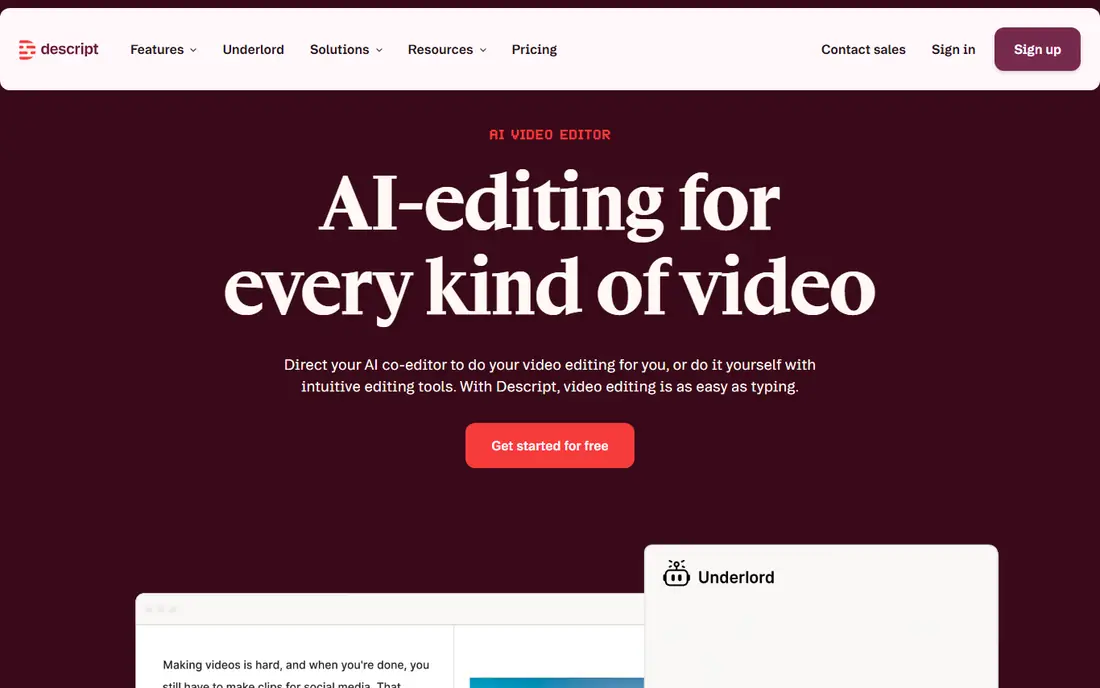
Descript changes how talking-head editing works. Instead of scrubbing a timeline, you edit a transcript, delete a word, and the video cut follows. Filler removal, studio sound cleanup, and auto-captions handle the repetitive parts of podcast and interview editing, which is why it is our pick for that kind of content.
The limits appear when you need heavy visual effects, complex timelines, or advanced color work. Descript can export to a fuller editor for finishing, but if your main work is visual effects, Premiere Pro or DaVinci Resolve will suit you better. Check the transcription and AI credit limits on the plan you choose, since they affect heavy users most.
- Edit video by editing a transcript
- Filler removal and auto-captions
- AI voice tools for corrections
- Less suited to complex visual effects and motion graphics
- AI features use credits that vary by plan

CapCut is the best free starting point for social video. It offers auto-captions, background removal, beat sync, templates, and effects across mobile, desktop, and browser, and the free tier covers a wide range of short-form work for TikTok, Reels, and Shorts. For creators who post often and need speed, that combination is hard to beat.
The Pro plan adds more AI features, assets, and export options, and some features that were once free now sit behind it. Start free, and upgrade only when a specific feature or export limit blocks a project you actually need to finish.
- Strong free tier with auto-captions and effects
- Mobile, desktop, and browser versions
- Fast social templates
- Some AI features and assets need a Pro plan
- Free tier limits have narrowed over time

Runway is the pick when you want to create or transform video with AI, not just cut it faster. Its tools for generating video from text or images, removing objects, changing styles, and extending scenes suit creative projects, ads, and experimental work. The browser workflow also makes it easy to try ideas without installing heavy software.
Credit limits are the main cost to watch. Generative work consumes credits quickly, and a low monthly price may not cover a large project. Use Runway for creative shots and effects, and finish longer edits in a timeline editor such as Premiere Pro or Resolve.
- Generative video, inpainting, object removal, and style tools
- Strong creative effects for short clips
- Browser-based workflow
- Credit-based pricing can get expensive for heavy use
- Not a full replacement for a traditional timeline editor
Premiere Pro remains the strongest combination of professional editing and AI assistance. Its timeline, audio, color, and effects tools handle complex productions, while AI features such as text-based editing, auto-reframe, audio cleanup, and generative extend reduce repetitive work. Integration with other Adobe apps is a further plus for teams already in that ecosystem.
The subscription price and learning curve put it out of reach for casual creators, and a 7-day trial is the only free option. Choose Premiere Pro when professional control, format support, and team workflows matter more than low cost or simplicity.
- Full professional timeline, audio, and color tools
- AI features including text-based editing and generative extend
- Broad format and plugin support
- Subscription cost is higher than many rivals
- Learning curve is steep for beginners
DaVinci Resolve offers the most professional capability for free. Its free version includes editing, color grading, visual effects, and audio tools that rival paid editors, plus AI features for face tracking, smart reframing, object masking, and audio classification. The Studio version, a one-time purchase, adds more AI tools and higher-end features without a subscription.
Beginners should expect a learning curve, especially in the color and effects pages. If you are willing to learn, Resolve is the best long-term value on this list, since the free version covers serious work and the paid upgrade does not lock you into monthly billing.
- Powerful free version with editing, color, and audio tools
- AI features for masking, tracking, and reframing
- One-time Studio upgrade option
- Interface and learning curve are steep
- Studio features need a one-time purchase
OpusClip solves one job very well: turning a long podcast, webinar, or video into short clips for social platforms. It identifies strong moments, adds captions, reframes for vertical formats, and scores clips for likely engagement. Creators who already make long content can produce a week of short posts from one recording with far less manual work.
The output still needs review. Some clips miss context or pick weaker moments, and the tool does not replace a full editor for original videos. Use OpusClip as a repurposing step, then polish the best clips in CapCut, Premiere Pro, or Resolve.
- Turns long videos into short clips automatically
- AI scoring for clip potential
- Auto-captions and reframing for vertical video
- Clip quality varies by source material
- Best for repurposing, not for full editing from scratch
VEED suits teams and creators who want quick browser editing without installing software. Its auto-subtitles, templates, and AI tools handle social videos, training clips, and marketing content well, and sharing and commenting features help small teams review drafts. The browser workflow also works on machines that cannot run a heavy desktop editor.
Free exports are watermarked, and higher resolutions and advanced features need a paid plan. For occasional quick edits, the free tier is enough to test the workflow, but regular publishers will need to budget for a paid plan.
- Browser-based editing with auto-subtitles
- AI avatars and text-to-video tools
- Simple sharing and collaboration
- Free exports carry a watermark
- Advanced editing and high-resolution exports need a paid plan
Filmora is the best pick for beginners who want traditional timeline editing with AI help, without the complexity of Premiere Pro or Resolve. Its interface is clear, its templates and effects cover common social and YouTube formats, and its AI tools for captions, audio, and background work save time on routine edits.
The free version watermarks exports, so serious publishing needs a paid plan, either yearly or perpetual depending on the offer. Filmora is a good stepping stone: learn editing here, and move to Resolve or Premiere Pro when you need deeper color, audio, or effects control.
- Approachable interface for beginners
- AI tools for captions, background removal, and effects
- Large template and asset library
- Free version exports with a watermark
- Professional color and audio tools are thinner than Premiere Pro or Resolve
How we picked these
We compared official feature pages, pricing pages, and public reviews for AI video tools available in October 2026. We favored tools with a clear AI strength, whether transcript editing, generative effects, repurposing, or assisted timeline editing, and with a free tier or trial for testing. We did not claim hands-on testing, and we used See website for prices where credit limits and billing options change frequently.
How to choose an AI video editor
Start with your main content type. Talking-head and podcast video points to Descript. Social short-form points to CapCut. Generative and creative work points to Runway. Professional productions point to Premiere Pro or Resolve. Long-to-short repurposing points to OpusClip. A tool matched to your content will save more time than a general tool with more features.
Next, check the limits that affect your volume. AI credits, transcription minutes, export resolution, watermark rules, and storage all vary by plan. A creator who publishes daily will hit those limits far sooner than someone who edits once a month, so choose a plan based on your real output, not the headline price.
Finally, test the full workflow, not just one feature. Record or import a real video, edit it, add captions, and export it in the format you publish. If any step feels slow or forces a workaround, that friction will repeat on every project, and another tool on this list may fit better.
FAQ
What is the best AI video editor for beginners?
CapCut is the best free beginner choice for social video, while Filmora suits beginners who want a traditional timeline. Descript is best for beginners who mainly edit talking-head video or podcasts.
Can AI video editors replace professional editors?
Not fully. AI tools speed up cutting, captions, and repurposing, but professional work still needs timeline control, color grading, audio mixing, and effects that Premiere Pro and DaVinci Resolve provide. Many professionals use AI tools alongside a full editor.
Is DaVinci Resolve really free?
Yes, the standard version of DaVinci Resolve is free and includes editing, color, effects, and audio tools. The Studio version is a one-time purchase that adds more AI features, higher-end effects, and other professional tools.
Which AI tool is best for turning long videos into Shorts?
OpusClip is the best specialist tool for that job, with automatic clip selection, captions, and vertical reframing. Review its clips before posting, since quality varies with the source material.
Do free AI video editors add watermarks?
Some do. VEED and Filmora watermark free exports, while CapCut and DaVinci Resolve offer watermark-free exports on their free tiers for many workflows. Check the export terms on the plan you use before publishing.
How much do AI video editing credits matter?
A lot for heavy users. Generative video, transcription, and AI effects often consume credits, and a low monthly price may include only a small allowance. Check credit limits, rollover rules, and the cost of extra credits before subscribing.