Best AI Tools for YouTube Content Creation: 8 Tools Compared
Our best ai tools for youtube content creation guide compares 8 tools for editing, clips, thumbnails, and channel growth, with prices and limits in 2026.

- Editor's choice
 Descript
Transcript-based video editing
Starts at$16 per monthVisit descript.comFull review - Great alternative
 Opus Clip
Long video to Shorts
Starts at$15 per monthVisit opus.proFull review - Also consider
 Pictory
Script to video
Starts at$19 per monthVisit pictory.aiFull review
TL;DR:
- Descript is our pick for talking-head creators because editing by transcript saves more time than any single AI effect.
- Opus Clip is the best specialist for turning long videos into Shorts, while full editors suit creators who control every cut.
- vidIQ and TubeBuddy answer different questions: search demand and packaging on one side, and Studio workflow on the other.
- Credit limits, watermarks, and export windows matter more than headline features, so test a real video before paying.
Quick comparison
| Tool | Best for | Starts at | Free plan? | |
|---|---|---|---|---|
| Descript | Transcript-based video editing | $16 per month | Yes | Visit |
| Opus Clip | Long video to Shorts | $15 per month | Yes | Visit |
| Pictory | Script to video | $19 per month | Free trial | Visit |
 InVideo | Fast AI video drafts | $20 per month | Yes | Visit |
 vidIQ | Keyword and channel research | See website | Yes | Visit |
 TubeBuddy | YouTube Studio workflow | See website | Yes | Visit |
 CapCut | Mobile and short-form editing | See website | Yes | Visit |
 VEED | Browser captions and polish | $12 per month | Yes | Visit |
The best ai tools for youtube content creation
We compared tools by the job they do on a channel, not by how many AI labels they carry. Some tools edit, some repurpose, and some help people find your video. The list below covers that full workflow in order.
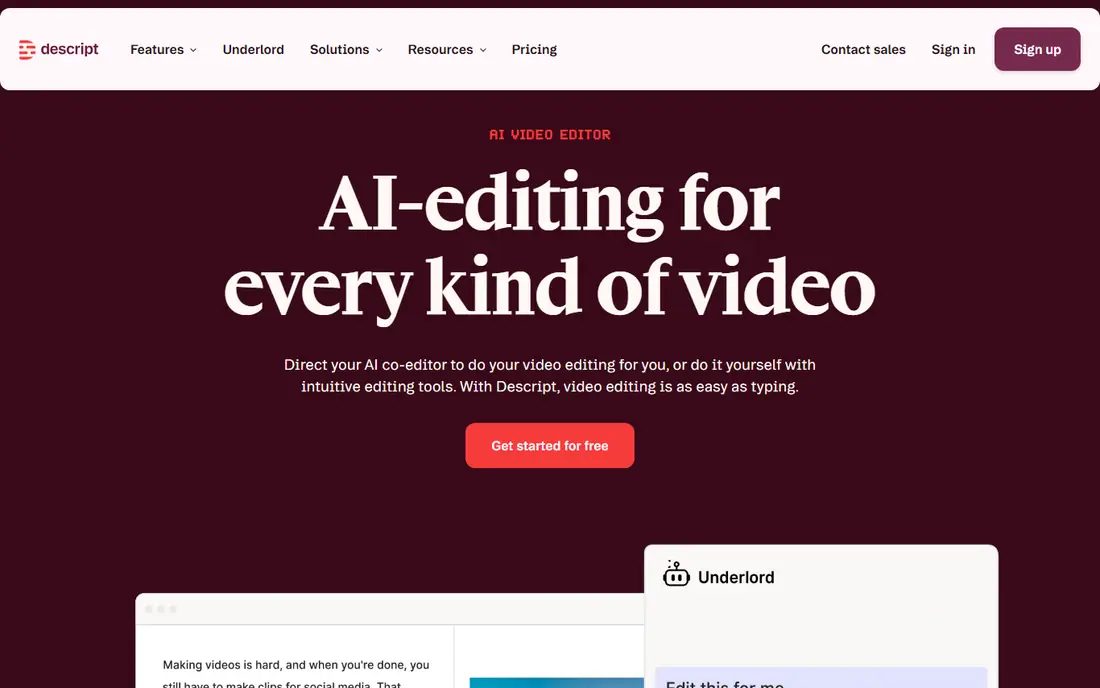
Descript changes editing for creators who talk to camera. You upload a video, get a transcript, and delete words to delete the matching video. That simple shift makes a rough cut far faster than scrubbing a timeline for every pause and mistake. Its tools for removing filler words, cleaning audio, and adding captions then turn that rough cut into a publishable video. The limits are usage based. Plans count media hours and AI credits, so a creator who publishes several long videos a week can hit a ceiling. Descript is also not a full visual effects editor, so complex motion graphics still belong elsewhere. If your channel is built on spoken video, it is the tool most likely to change your weekly routine.
- Edit video by editing text
- Strong filler-word removal
- Good captions and studio sound tools
- Media hours and AI credits can run out
- Less suited to heavy visual effects work
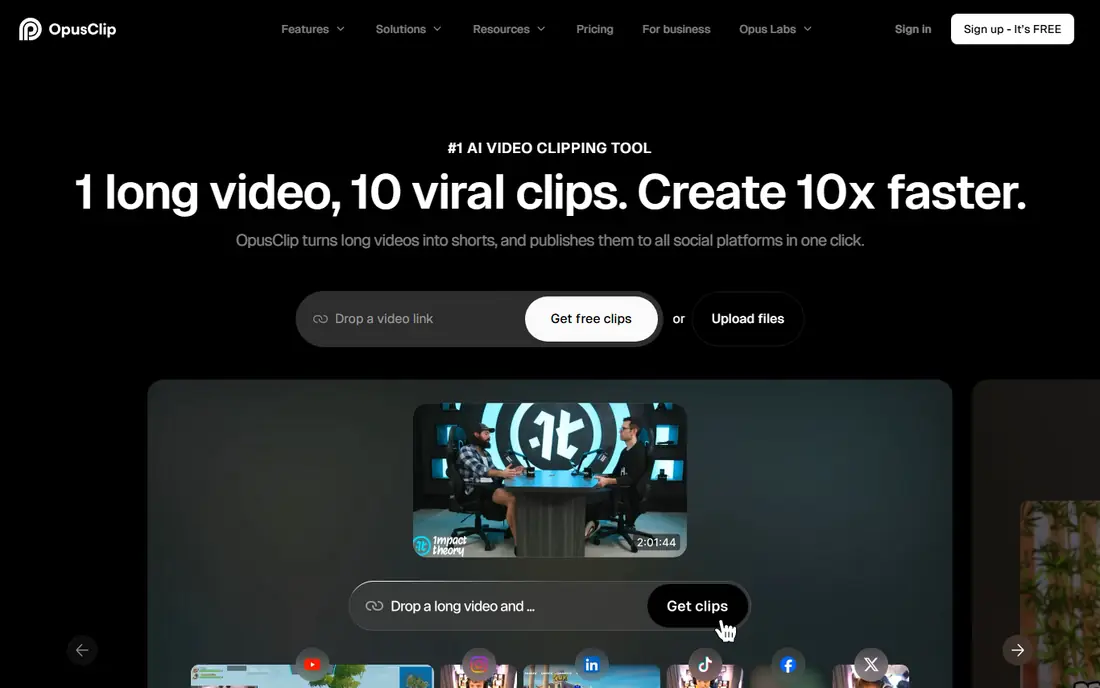
Opus Clip exists for one job, and it does that job well. Upload a long video or paste a link, and it returns short vertical clips with captions, reframing, and a score for each clip. For podcasters and educators, that turns one recording session into a week of Shorts without re-editing the same material by hand. The honest catch is selection. An AI score can rank a clip, but it cannot know your audience, your series, or a joke that only makes sense with context. Review every clip before posting, and expect to reject some. Credits also count by source minutes, so long weekly episodes need a plan that matches your volume.
- Finds highlight moments automatically
- Adds captions and reframing
- Virality scores help sorting
- Scores are predictions, not guarantees
- Free exports carry a watermark and a short window

Pictory suits faceless channels, educators, and businesses that need video from written content. Paste a script or a blog post, and Pictory matches scenes to stock video, adds narration, and builds captions. That workflow is far faster than filming and editing a new video for every article. The trade-off is visual identity. Stock footage is useful, but a channel built only on stock can look like many other channels. Add your own clips, brand colors, and a consistent voice to stand out. Also note the trial limit: Pictory does not offer a permanent free plan, so budget for a paid month to test it properly.
- Turns scripts and articles into video
- Large stock library
- Simple scene editing
- No free plan, only a trial
- Stock-based videos can look generic without custom footage
InVideo is a good fit when you need a draft video fast, especially for explainers, promos, and social versions of a longer piece. Start from a prompt or a template, adjust scenes and text, and export a video that is close to publishable. Its template range helps creators who do not want to design every scene from scratch. Quality control still matters. AI drafts can include odd visuals, mismatched stock, or narration that sounds flat, so plan time for review and replacement scenes. Free plan exports are watermarked, which makes them fine for testing but not for a public channel. Use InVideo for speed, then polish the result.
- Prompt to video drafts
- Templates for many formats
- Stock and voice options built in
- Free exports carry a watermark
- AI credits can burn quickly on longer videos
vidIQ helps before you record, which is where many channels win or lose. It shows search interest, competition, and related terms for a topic, so you can pick a title and angle with real demand behind it. Its audit and idea tools also help you spot which older videos deserve an update or a new thumbnail. Treat its scores as guidance. Search data can point to demand, but thumbnail quality, watch time, and topic fit still decide performance. The free plan covers basic research, which is enough for a new channel to test topics. Larger channels that track many keywords will likely need a paid plan.
- Search volume and competition data
- Title and thumbnail ideas
- Channel audit tools
- Data is an estimate, not a promise of views
- Paid features add up for small channels
TubeBuddy is a browser extension that adds practical tools inside YouTube Studio. Bulk edits, thumbnail tests, tag suggestions, and publishing checklists save time for creators who manage many videos. It is less about discovering a new topic and more about doing the routine work around each upload well. The overlap with vidIQ is real. Both offer keyword help, so pick one as your main research tool unless you have a clear reason to keep both. TubeBuddy also has many features, and new users can feel lost in its menus. Start with thumbnail testing and bulk tools, then add features only when a task repeats.
- Bulk tools inside YouTube Studio
- Tag and thumbnail testing
- Publishing checklists
- Interface can feel crowded
- Some features overlap with vidIQ, so owning both can waste money
CapCut is the tool many short-form creators open first. It is fast on a phone, its caption styles look current, and its effects are built for vertical video. If you film on a phone and publish Shorts, TikTok clips, and Reels from the same edit, CapCut keeps that workflow in one place. It is not a full replacement for a desktop editor on long, complex videos. Timeline control, color work, and audio mixing are more limited, and Pro pricing can be confusing because it varies by store and region. Check the price in your app store before you compare it with desktop tools. For short-form speed, though, few tools match it.
- Fast mobile editing
- Caption styles and effects for Shorts
- Easy social export
- Pricing varies by region and platform
- Some templates and effects need Pro
VEED suits creators who work on different computers, collaborate with a team, or need captions fast. Upload a video in the browser, generate subtitles, clean up the text, and export a polished version without installing software. Translation and dubbing options also help channels that serve more than one language. The browser has limits. Very long or effects-heavy projects can feel slower than in a desktop editor, and the free plan is best for testing rather than publishing. Paid plans remove the watermark and raise quality. Choose VEED when captions, collaboration, and browser access matter more than advanced effects.
- Runs in a browser with no install
- Strong auto captions
- Translation and dubbing options
- Free exports are watermarked at lower resolution
- Heavy projects suit a desktop editor better
How we picked these
We compared official feature pages, pricing pages, and public reviews for tools that serve a clear step in YouTube production: scripting, editing, repurposing, packaging, or publishing. A tool made this list only if it is actively sold in October 2026 and fits YouTube work, not general video work alone. We weighed free plans, credit limits, export quality, and how much time each tool saves on a real upload cycle.
Build a stack that fits your channel
Match the tool to your bottleneck
Do not buy a full stack at once. If editing takes your week, start with Descript or VEED. If you have long videos but no Shorts, start with Opus Clip. If views are flat, start with vidIQ or TubeBuddy and fix titles and thumbnails before adding another editor. One tool that fixes a real bottleneck beats three tools you open once a month.
Watch credits and disclosure
AI tools often charge by minutes, credits, or clips, so count your real monthly output before you choose a plan. Also follow YouTube rules on altered or synthetic content: label AI-generated or altered material when YouTube asks you to, and do not present AI voice or footage as a real person saying something they did not say. Clear disclosure protects your channel and your audience.
Keep a human pass in every video
AI can draft, cut, caption, and suggest titles, but it cannot judge taste, accuracy, or tone for your audience. Read every script, watch every clip, and check facts before publishing. That human pass is also where your channel voice comes from, and it is the part viewers return for.
FAQ
Do AI tools hurt a YouTube channel?
YouTube does not ban AI tools as such, but it does require disclosure for realistic altered or synthetic content in some cases, and it still judges videos by viewer value. A low effort video made only from stock and AI narration will struggle, while an AI-assisted video with real insight, good editing, and clear value can perform well. Use AI to speed production, not to replace the idea.
What is the best free AI tool for YouTube beginners?
CapCut and the free plans from Descript, Opus Clip, and VEED give beginners a useful start without paying. CapCut is best for short-form editing on a phone, Descript for talking-head edits, and Opus Clip for Shorts from long videos. Expect watermarks or limits on free plans, and upgrade only when one tool clearly saves you time each week.
Is Opus Clip or Descript better for Shorts?
Opus Clip is better if you want automatic Shorts from a long video with little manual work. Descript is better if you want to edit the long video itself and then cut Shorts by hand with full control. Many creators use both: Descript for the main edit, then Opus Clip for extra Shorts from the same recording.
Can vidIQ or TubeBuddy guarantee more views?
No tool can guarantee views, since ranking and recommendations also depend on topic, thumbnail, watch time, and audience fit. These tools improve your odds by showing demand, competition, and packaging options. Treat their scores as research, test titles and thumbnails, and keep what your own analytics support.
How much should a small channel spend on AI tools?
Start free, then add one paid tool at a time once it saves you at least an hour a week or clearly improves output. A typical small stack might be one editor and one research tool, often under 40 dollars a month combined. Avoid paying for overlapping tools, such as two keyword tools, until your channel income covers the cost.