Best AI Tools for Presentations in 2026: 8 Tools Compared
Looking for the best AI tools for presentations in 2026? We compared 8 AI slide makers on design, editing, exports, and pricing for work and school use.
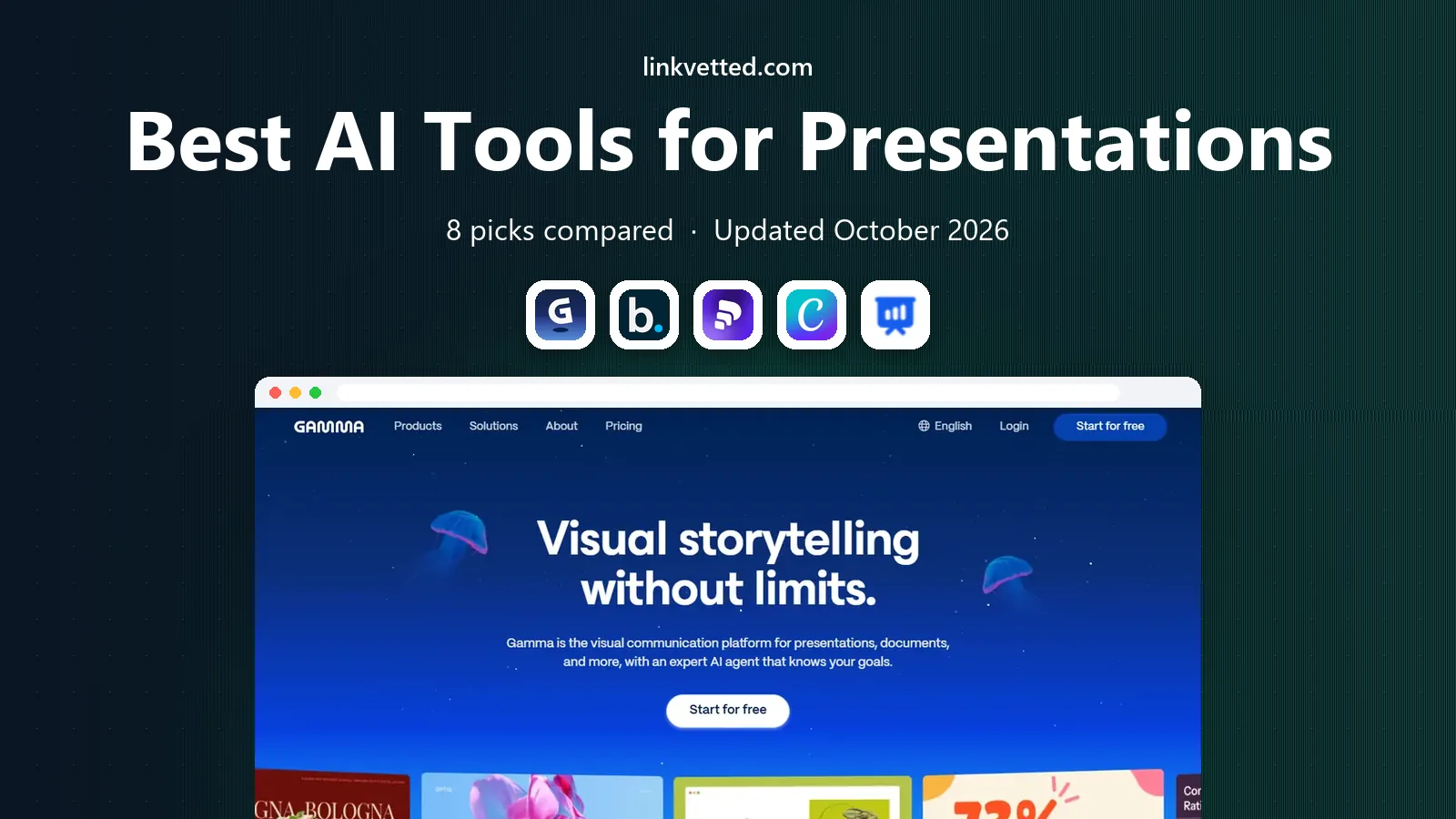
- Editor's choice
 Gamma
Fast prompt-to-deck creation
Starts atFreeVisit gamma.appFull review - Great alternative
 Beautiful.ai
Consistent corporate decks
Starts at$14.50 per monthVisit beautiful.aiFull review - Also consider
 Pitch
Team decks with analytics
Starts atFreeVisit pitch.comFull review
TL;DR:
- Gamma is our pick for most people because it turns a prompt or a document into a clean, web-ready deck fast, with a useful free tier.
- Beautiful.ai is the better choice for teams that need consistent branding and layouts that stay tidy as you edit.
- SlidesAI and Plus AI suit people who want to stay inside Google Slides or PowerPoint rather than learning a new slide app.
- Canva is the best all-round design option if you also need social graphics, documents, and templates in one place.
- Check export options before you pay: some tools export to PowerPoint and PDF easily, while others work best as web decks.
Quick comparison
| Tool | Best for | Starts at | Free plan? | |
|---|---|---|---|---|
| Gamma | Fast prompt-to-deck creation | Free | Yes | Visit |
| Beautiful.ai | Consistent corporate decks | $14.50 per month | Free trial | Visit |
| Pitch | Team decks with analytics | Free | Yes | Visit |
 Canva | All-round design and templates | Free | Yes | Visit |
 SlidesAI | Text to Google Slides | Free | Yes | Visit |
 Plus AI | AI inside PowerPoint and Slides | $10 per month | Free trial | Visit |
 Prezi | Non-linear, visual presentations | Free | Yes | Visit |
 Presentations.ai | Fast decks from a short prompt | Free | Yes | Visit |
The best AI tools for presentations
We compared official feature pages and pricing pages for tools that are still active in 2026. We left out tools that have shut down, even if older guides still list them. Each tool below can turn text into slides, but they differ in design control, teamwork, and exports.

Gamma is our pick for most people because it removes the blank slide problem. You type a topic, paste text, or upload a document, and Gamma builds a deck with structure, headings, and images in a short time. You can then edit text, swap layouts, and share the result as a web page or export it for other uses.
The web format is a strength for sharing. A link opens cleanly on a phone or laptop, and you can add videos, embeds, and interactive elements that feel flat in a static file. Analytics on paid plans show views, which helps for sales decks and class materials that you share widely.
The catch is familiarity. If your workplace expects a PowerPoint file with exact slide sizes, Gamma can export to PowerPoint and PDF, but the result may need a quick tidy. It is best for people who are happy to present from a link or a PDF, and who want speed over pixel-perfect PowerPoint control.
- Very fast first drafts from a prompt or document
- Modern web decks with embeds and analytics
- Free tier with one-time credits to test it
- Web-first format feels different from PowerPoint
- Some exports and branding removal need a paid plan

Beautiful.ai suits teams that need every deck to look on brand, even when many people edit it. Its Smart Slides keep text, images, and charts balanced as you add content, so a slide does not turn into a crowded mess after three edits. That discipline is valuable for client work, board decks, and sales reviews.
Team plans add shared libraries, brand colours and fonts, and controls over who can change templates. If your main problem is inconsistent decks from different colleagues, Beautiful.ai solves that problem more directly than a pure prompt tool. The PowerPoint export also helps when a client or manager expects a standard file.
The trade-off is creative freedom. You work inside a set of smart templates, so a highly custom design takes more effort. There is no free plan, only a trial, so test it with a real deck before you pay. For corporate consistency, though, it is a strong pick.
- Smart Slides adjust layout as you edit
- Strong brand controls for teams
- PowerPoint export for office workflows
- Less free-form than Gamma for creative decks
- Team pricing rises quickly with seats
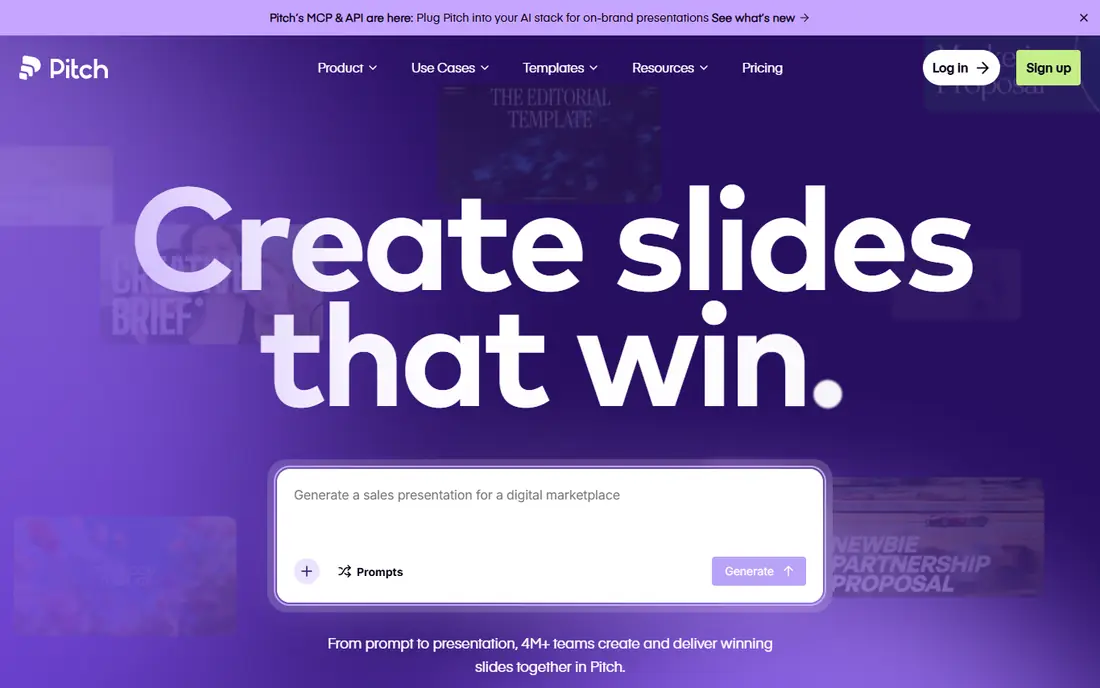
Pitch is a good choice for a small team that presents together and wants to know how a deck performs after sharing. You can build decks in the browser, comment, assign slides, and share a link with clients or colleagues. Analytics show views and engagement, which helps for fundraising and sales decks.
The design tools are clean and modern, with templates for pitches, reports, and marketing decks. Collaboration feels natural, with version history and shared workspaces that reduce the usual problem of five copies of the same deck. The free plan covers small teams and basic use, which makes it easy to try.
The AI side is useful but not the main reason to choose Pitch. If you want the fastest, most creative first draft, Gamma will likely impress you more. If you want a team workspace with sharing and analytics, Pitch is the better fit.
- Free plan for small teams
- Good collaboration and link sharing
- Viewer analytics on paid plans
- AI generation is less striking than Gamma for a first draft
- Pricing varies by currency and plan
Canva is the best pick if presentations are only one part of your design work. The same account can make slides, social posts, posters, documents, and videos, all with a large template library. For a small business or a teacher, that breadth is more useful than a tool that only makes decks.
Its AI features can turn a prompt into a slide draft, suggest layouts, and help with images and text. Editing is simple: drag elements, change colours, and swap photos without learning design software. Exports to PowerPoint and PDF are straightforward, which helps when you need to hand a file to someone else.
The catch is that Canva is a general design tool, not a specialist slide engine. A first draft may need more tidying than one from Gamma or Beautiful.ai, especially for a data-heavy business deck. If you already use Canva for other work, though, it is a sensible and low-cost choice.
- Huge template library for slides and other designs
- Easy drag-and-drop editing
- PowerPoint and PDF exports
- AI slide drafts can need more editing than specialist tools
- Best features sit behind a paid plan
SlidesAI suits Google Workspace users who want AI help without leaving Google Slides. You paste text or a summary, choose a style, and SlidesAI builds slides inside your Google account. You can then edit in Slides as normal, share with colleagues, and present from Google.
That familiarity is the main advantage. There is no export step, no new file format, and no need to teach a team a new tool. For school work, internal updates, and simple business decks, that simplicity saves time. The free tier lets you test it on a real presentation before you pay.
The limits are design range and volume. SlidesAI decks look clean but less distinctive than Gamma decks, and the free plan caps how many presentations you can create. If you make decks often and want varied designs, a specialist tool may serve you better.
- Works inside Google Slides, so no new app to learn
- Turns pasted text into a structured deck
- Free tier for a few presentations a year
- Design options are narrower than Gamma or Canva
- Free tier limits how many decks you can make
Plus AI is our pick for people who must deliver PowerPoint or Google Slides files and do not want to rebuild a deck after exporting it. It adds AI generation and editing inside the slide app you already use, so the final file stays in the format your team expects. That matters in offices where PowerPoint is the standard.
You can start from a prompt, a document, or an outline, and Plus AI will draft slides with headings and bullet points. You can then edit, rewrite, and adjust layouts in the normal editor.The drawback is price and polish. There is no free plan beyond a trial, and the final look still depends on your template and how much you edit. If you are happy to present from a web link, Gamma may give you a stronger first draft. If PowerPoint is required, Plus AI is a practical choice.
- Works inside PowerPoint and Google Slides
- Can build a deck from a prompt or a document
- Keeps your usual file format
- No long-term free plan, only a trial
- Design polish depends on your template and edits
Prezi is different from the other tools here, and that difference is the point. Instead of moving slide by slide in a line, you move across a large canvas, zooming into topics and back out to the big picture. For a talk, a lesson, or a pitch where the story matters, that movement can hold attention better than a standard deck.
The AI and template tools help you start, but Prezi works best when you plan the journey of the talk first. You choose a path, add visuals and text, and practise the zooms so they feel smooth rather than dizzying. Used well, it makes a presentation feel like a guided tour rather than a list of slides.
The catch is fit. Dense reports, financial updates, and decks that will be read alone as documents work better in PowerPoint or Gamma. Prezi also takes practice. If you want a visual, story-led talk, it is worth that practice. If you want a quick, standard deck, choose a simpler tool.
- Zooming canvas makes talks feel visual and memorable
- Good for storytelling and teaching
- Free plan for basic use
- Learning curve for the canvas style
- Less suited to dense, text-heavy business decks
Presentations.ai suits people who need a decent deck quickly and do not want to spend time on design. You enter a topic or a short outline, and the tool builds slides with a consistent style. Editing is straightforward, and sharing a link or exporting a file covers most everyday needs.
We like it for internal updates, school projects, and first drafts that you will refine with your own data. It removes the slow start, and it keeps the design tidy enough that you are not embarrassed to share it. The free tier lets you test whether its style suits your work.
The weakness is depth. On a long, brand-heavy deck, templates can start to look similar, and brand controls are not as strong as on Beautiful.ai. For a one-off client deck, a specialist tool may give you a sharper result. For speed and simplicity, Presentations.ai is a solid choice.
- Very quick first drafts from a short prompt
- Simple editing and sharing
- Useful for internal decks and class work
- Templates can feel generic on longer decks
- Advanced brand controls are thinner than Beautiful.ai
How we picked these
We compared official feature pages and pricing pages, and we checked that each homepage loads and belongs to the product named. We favoured tools that are still active in 2026, that generate or improve slides with AI, and that export or share in a usable format. We also looked at free tiers, team features, and whether a tool forces you into a new file format.
We did not claim hands-on testing of every deck, and we did not rely on a single review site. Where pricing varies by billing period or currency, we used the annual or starting figure shown on the vendor site and noted that you should check checkout before you pay. Prices change, so confirm the current plan on the vendor site.
How to choose an AI presentation tool
Start with where the deck will live. If you must deliver PowerPoint, choose Plus AI or a tool with a clean PowerPoint export. If you can share a link or a PDF, Gamma and Pitch give you more modern sharing and analytics. If you live in Google Slides, SlidesAI keeps your workflow intact.
Check design, data, and exports
Test each tool with a real deck, not just a demo prompt. Add a chart, a table, and your logo, then export it in the format your audience expects. Check how text, fonts, and images survive the export, and check whether brand colours stay consistent across slides. A tool that looks good in the browser but breaks on export will cost you time later.
Keep AI drafts honest
AI drafts are a starting point, not a finished deck. Check every fact, number, and quote, and rewrite text in your own voice. Remove slides that repeat the same point, and keep only the visuals that help your audience understand the message. A short, accurate deck beats a long, polished deck with errors.
FAQ
What is the best AI tool for presentations?
Gamma is our pick for most people because it makes a clean first draft fast and shares well as a web deck. Beautiful.ai is better for teams that need strict branding, and Plus AI is better if you must stay in PowerPoint.
Can AI make a full presentation from a prompt?
Yes, most tools here can draft a full deck from a short prompt or a document. You should still check facts, edit the text, and adjust layouts before you present. AI is best for structure and a first draft, not for final, unchecked content.
Is there a free AI presentation tool?
Yes. Gamma, Canva, Pitch, SlidesAI, and Presentations.ai all offer free tiers, with limits on credits, decks, or features. Beautiful.ai and Plus AI offer trials rather than free plans. Try the free tier on a real deck before you pay.
Which AI presentation tool works best with PowerPoint?
Plus AI works inside PowerPoint, so your file stays in PowerPoint format. Beautiful.ai and Canva also export to PowerPoint, and Gamma exports to PowerPoint and PDF. Test the export with your template before you commit to a tool.
Which AI presentation tool works best with Google Slides?
SlidesAI works inside Google Slides, which makes it the simplest choice for Google Workspace users. Plus AI also works in Google Slides. Canva and Gamma can export files you can open in Slides, but the formatting may need a quick tidy.
Do AI presentation tools replace good design?
No. They speed up structure and layout, but you still need clear headings, short text, and visuals that support your message. Use AI for a first draft, then edit ruthlessly, check your data, and practise the talk itself.